CYBER27 — an operating system
Bare-metal system for Raspberry Pi 3 — no Linux, with its own BASIC interpreter, graphical desktop and 3D engine. Everything runs directly on the hardware.
Technical data
| CPU | ARM Cortex-A53, 4× 1.2 GHz (Raspberry Pi 3) |
| OS | none — bare metal (Circle) |
| Display | 320×240 buffer, scaled to 640×480 / 1920×1080 |
| Colours | 255 (palette, like Amiga 1200) |
| Language | custom BASIC interpreter (R0-R7, named vars, SUB/FUNCTION, TYPE) |
| Sprites | 16 slots × 32×32, 8 animation frames, ×1..×4 scaling |
| 3D engine | raycasting (Wolf), tunnel, isometric (Diablo style) |
| Maps | up to 320×320 tiles, layer database (WARSTWY.TXT) |
| Audio | 4-voice ADSR + PCM samples (SLOAD/SPLAY) |
| Memory | 64 MB kernel, BSS ~3.6 MB |
Screenshots
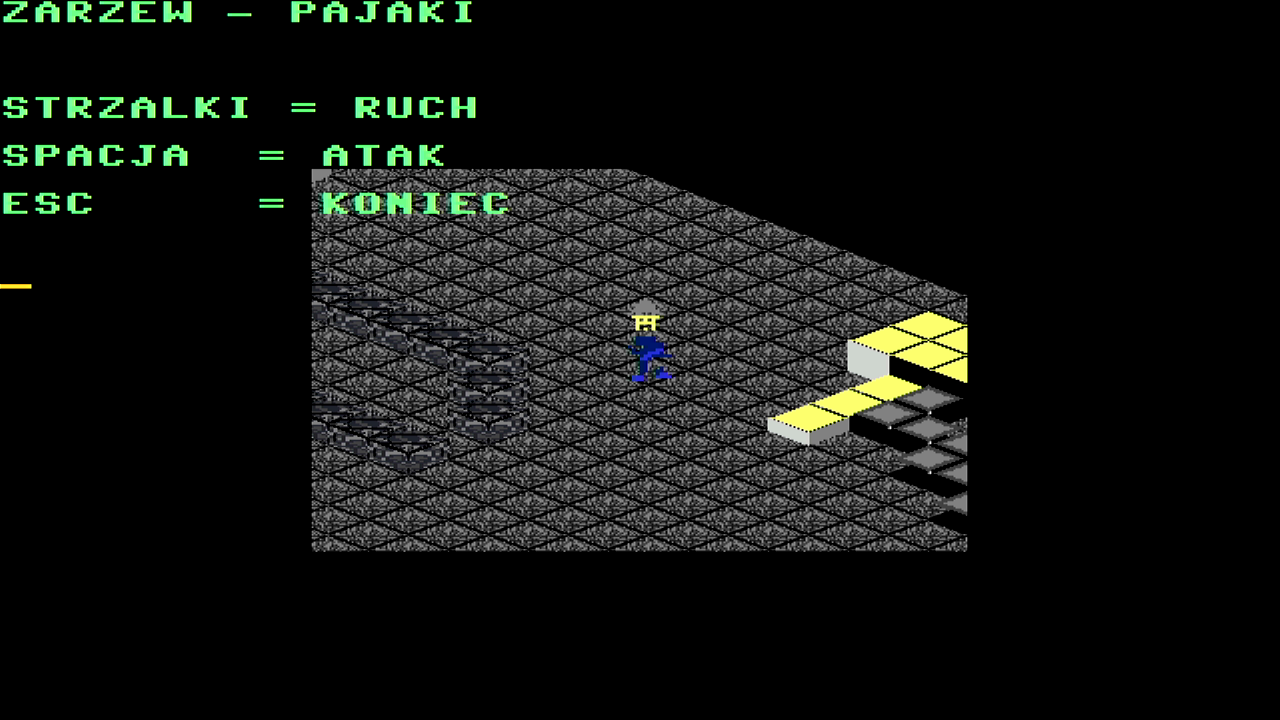
ZARZEW — Isometrie (Diablo-Stil) | Izometria | Isometric | Изометрия
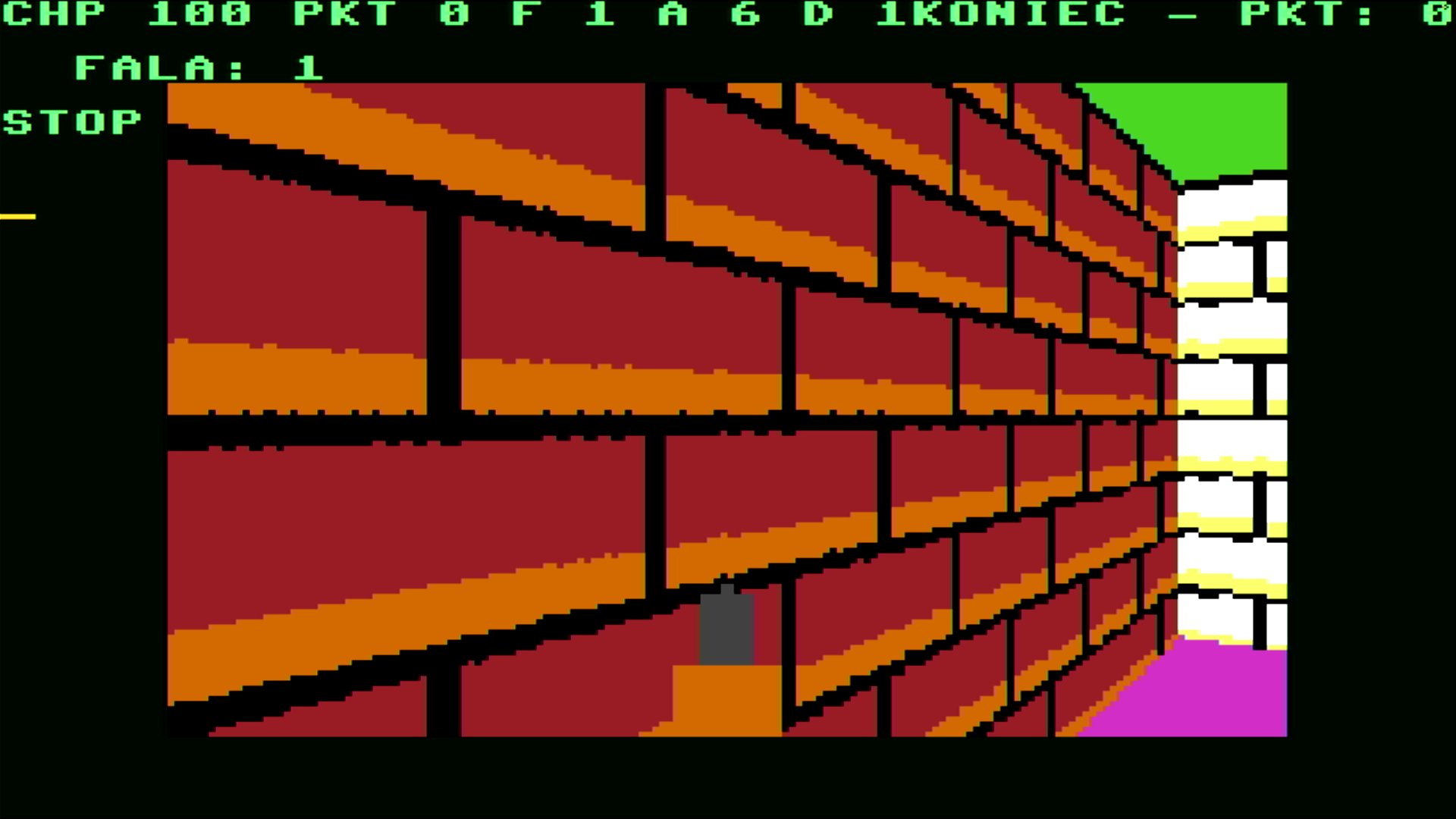
CYBER-LAB 3D — Raycasting (Wolfenstein-Stil) | CYBER-LAB 3D — raycaster | CYBER-LAB 3D — raycaster | CYBER-LAB 3D — рейкастинг
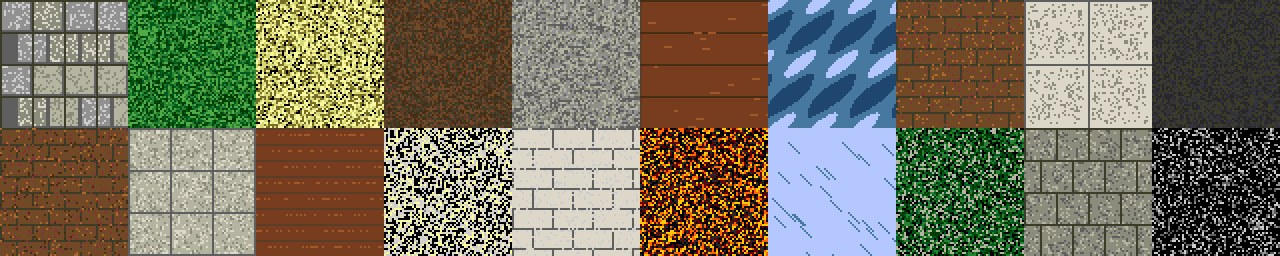
Texturen 64×64 | Tekstury | Textures | Текстуры
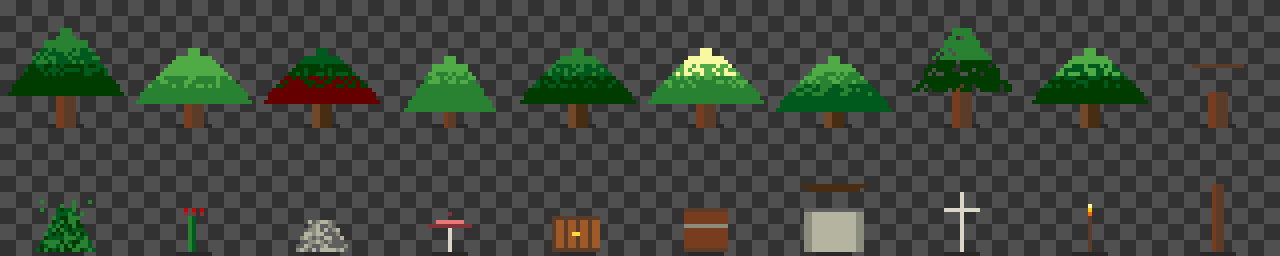
Objekte 32×32 | Obiekty | Objects | Объекты
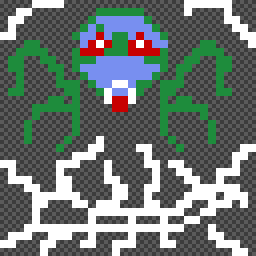
Sprite & Transparenz | Sprite | Sprite | Спрайт
Educational programs
Besides games the system contains a full learning package: maths, physics, chemistry, geography, astronomy — from primary school to university level. All written in BASIC.
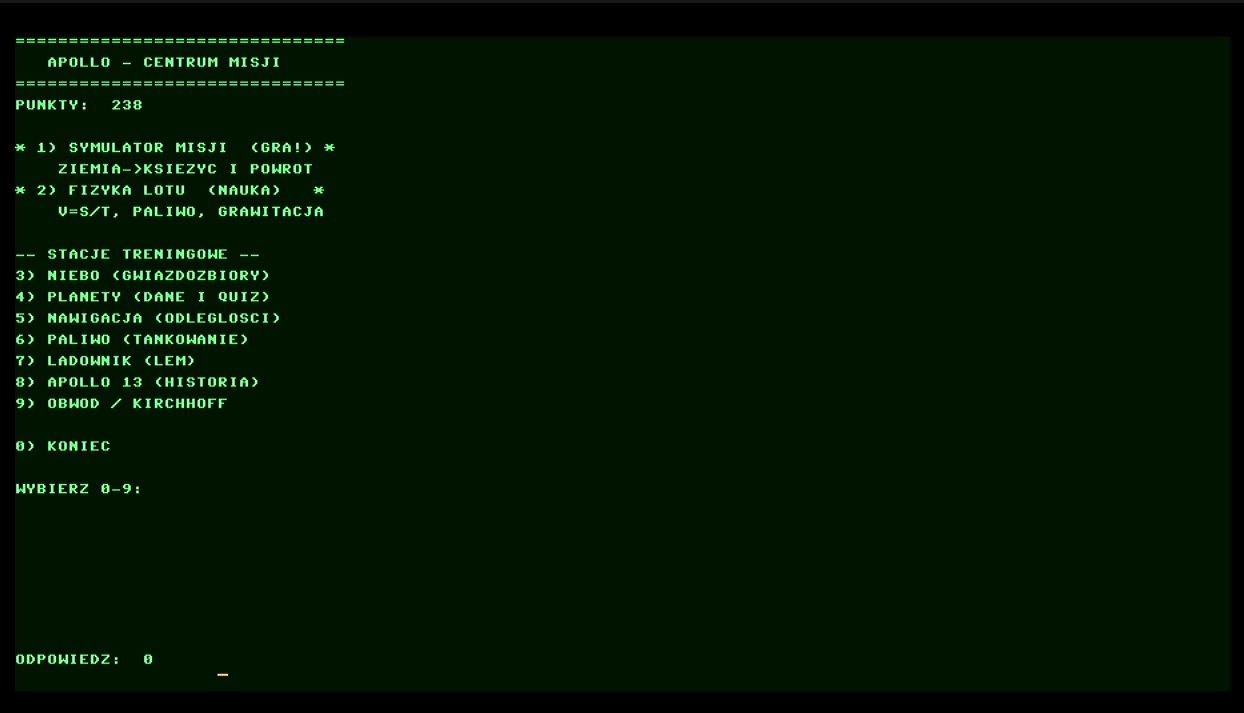
APOLLO — Centrum Misji | Centrum Misji | Mission Centre | Центр миссии
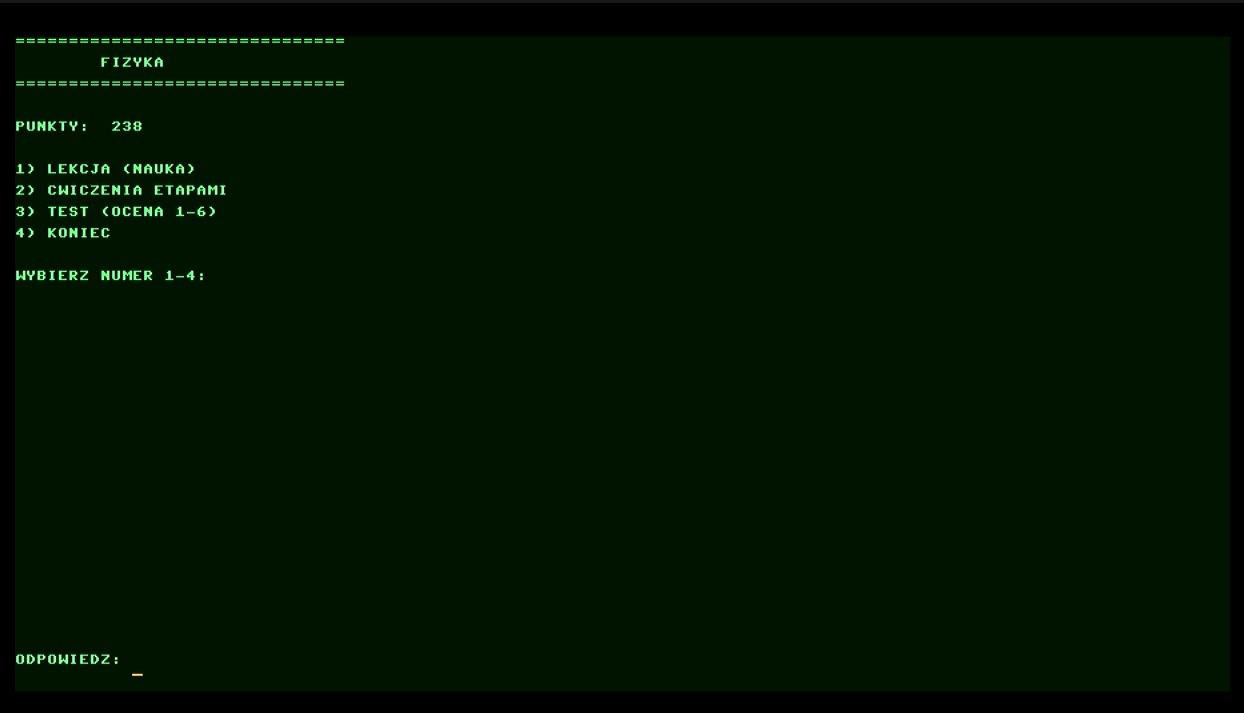
Fizyka | Fizyka | Physics | Физика
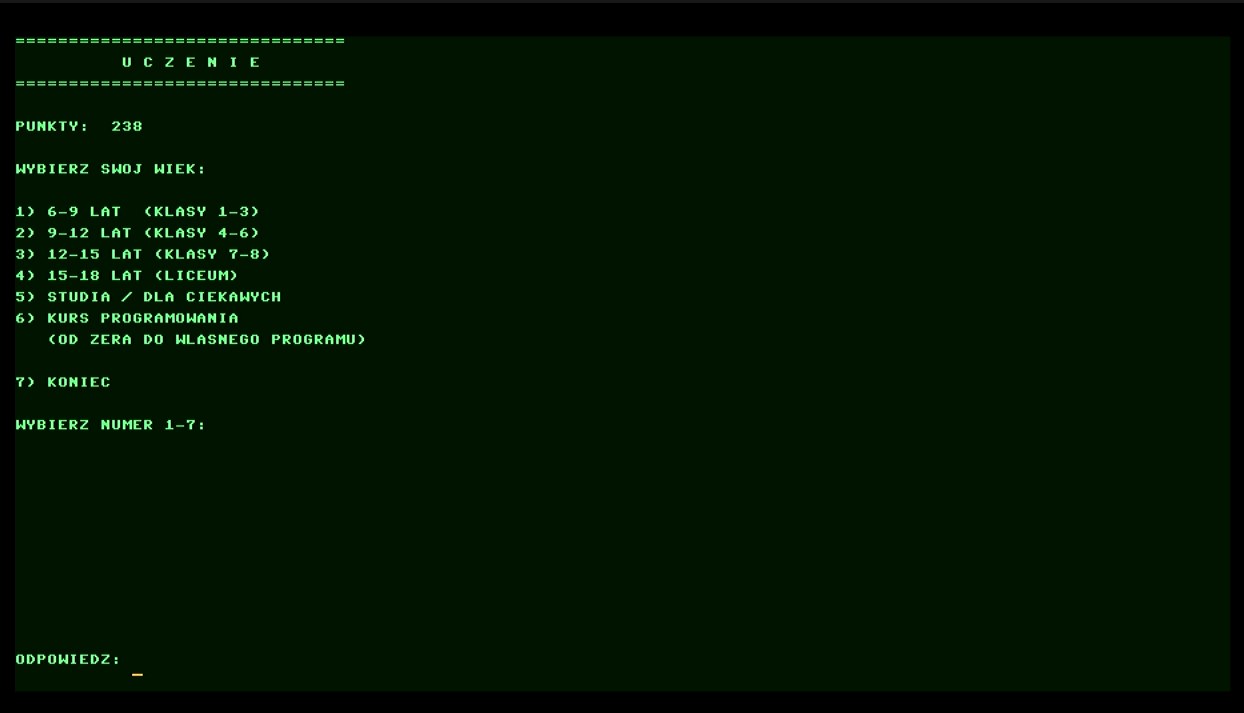
Uczenie — wybór wieku | Uczenie | Learning | Обучение
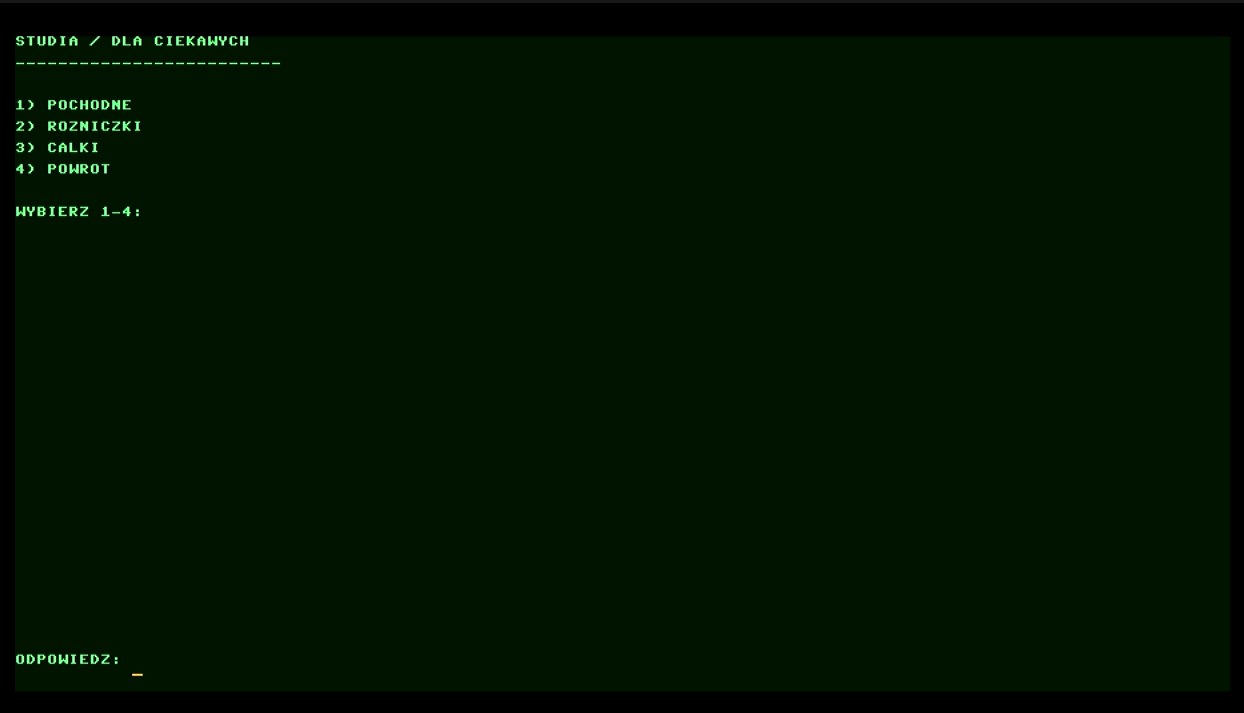
Studia | Studia | Advanced | Углублённо
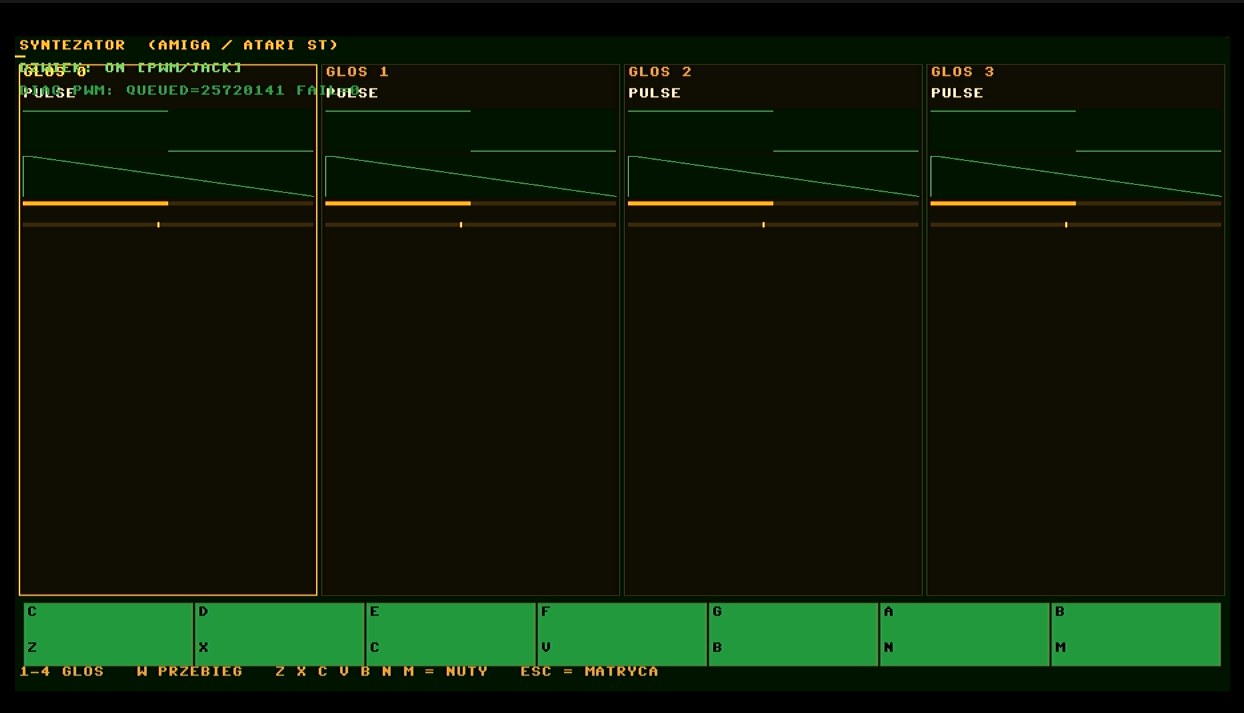
Syntezator — 4 głosy | Syntezator | Synthesizer | Синтезатор
BASIC manual (in-system help)
Basics: how a program works
CYBER27 BASIC (27-BIT)

A PROGRAM is a list of lines.
Each line has a NUMBER and CONTENT:

     10 PRINT "OK"
     ^^ ^^^^^^^^^^
     |  +-- content (what to do)
     +----- number (order)

The NUMBERS decide the ORDER OF EXECUTION,
not the order you typed them. So you can
insert line 15 between 10 and 20 — it will
still run in the right place.

REGISTERS: R0, R1 ... R7
  8 cells for numbers. The fastest.

MEMORY: 256 words (addresses 0x00..0xFF)
  Bigger than registers, slower.
  Access via POKE and PEEK.

NUMBERS: floating point (like C64, but
more precise). Dot and minus work:
  PRINT 1/2    ->  0.5
  PRINT 10/3   ->  3.33333333
  PRINT -5     ->  -5

MEMORY (POKE/PEEK) and bit operators
stay 27-bit (0x07FFFFFF).

AUTO NUMBERING: in the editor a new line
gets its own number (10, 20, 30...).
You can also type the number yourself.
Basic commands
PRINT "TEXT"    prints text
  Quotation marks REQUIRED for text!
  PRINT "HELLO"

PRINT R3        prints the CONTENT of
  the register — WITHOUT quotation marks

PRINT "A", R0   several elements
  ',' = space, ';' = no gap
  trailing ';' = no line break

?               short form of PRINT

A space (without comma) separates
text and number — like in C64.
Registers and memory
REGISTERS R0..R7 — 8 cells for numbers.
These are the FASTEST variables.

  R0 = 5            assign a value
  R1 = R0 * 2       calculate
  PRINT R1          print (10)

Registers are where speed matters.

MEMORY (POKE/PEEK):
  POKE 0x10, R3     write to memory
    0x10 = address (slot 16)
    R3   = value to write
    Memory has 256 words (0x00..0xFF).

  PEEK 0x10         read from memory
    Result on the SCREEN. In a program
    use PEEK(x) as a function in an expression.

DIM A(20)         ARRAY A (indices 0..20)
  A(i) = 7        write an element
  PRINT A(i)      read an element
  Letters A..Z, index max. 63.

INPUT R0          read a number from the user
  from the keyboard.
Arithmetic: ADD SUB MUL
ADD R0, R1, R2    R0 = R1 + R2
SUB R0, R1, R2    R0 = R1 - R2
MUL R0, R1, R2    R0 = R1 * R2
DIV R0, R1, R2    R0 = R1 / R2

IMPORTANT: the RESULT must end up in a
REGISTER (not in an array)!

In expressions normal operators also work:

  R0 = 3 * 4 + 1       -> 13
  R1 = (2 + 3) * 4     -> 20
  R2 = 10 / 4          -> 2.5

Priority: ( ) then * / then + -

Truncating to integer: there is no
TRUNC/INT — use & (bit mask) or another way.
Roots, powers, waves (SIN/COS)
SIN(x)   sine (x in radians)
COS(x)   cosine
TAN(x)   tangent
ATN(x)   arctangent
SQR(x)   square root
ABS(x)   absolute value
SGN(x)   sign (-1, 0, 1)

DEGREES -> RADIANS:
  rad = deg * PI / 180

CIRCLE from angles:
  x = cx + r * COS(a)
  y = cy + r * SIN(a)

PI is a built-in constant:
  PRINT PI     -> 3.14159265...

POWERS:
  SQR(x) is the root. For powers,
  multiply: x*x*x instead of x^3.
Bit arithmetic
BIT OPERATIONS — on each bit separately.
This is NOT normal mathematics.

AND R2,R0,R1   bitwise AND
  Result 1 only when BOTH bits are 1.
    1100 AND 1010 = 1000

OR  R2,R0,R1   bitwise OR
  Result 1 when ANY bit is 1.
    1100 OR  1010 = 1110

XOR R2,R0,R1   bitwise XOR
  Result 1 when the bits DIFFER.
    1100 XOR 1010 = 0110

NOT R2,R0      negation
  Turns every 0 into 1 and vice versa.

SHL R2,R0,3    shift LEFT
  That is multiplication by 2^3 = 8.
    0001 SHL 1 = 0010

SHR R2,R0,2    shift RIGHT
  That is division by 4 (on bits).

WHY: checking a pin means
AND with a mask — without multiplication,
very fast. This is how the hardware works.

DIFFERENCE from ADD/MUL:
  SHL is a shift — not arithmetic.
Graphics: drawing (CO, TP, LINE...)
CO n              set drawing COLOUR
  n = 0..255 (palette, C64 + 191 new):
     0 black       1 white
     2 red         3 cyan
     4 violet      5 green
     6 blue        7 yellow
     8-15 bright variants
  CO 1     or   COLOR 12

TD x,y,"TEXT"     draw TEXT
  x = column, y = row
  TD 2,2,"CYBER27"

TP x,y,color      set a PIXEL
  x,y   = position (pixels)
  TP 0,0,15   TP 20,10,12

LINES AND SHAPES (pixel coordinates):
  LINE x1,y1,x2,y2    line
  BOX x1,y1,x2,y2     rectangle (frame)
  FILLRECT x1,y1,x2,y2 filled rectangle
  CIRCLE x,y,r        circle
  FILLCIRCLE x,y,r    filled circle
  example:
    BOX 10,10,80,60

BLIT sx,sy,w,h,dx,dy   copy a rectangle
BLITT sx,sy,w,h,dx,dy  like BLIT, but 0 = transparent

GRAPHICS BUFFER: 320 x 240 pixels.
Scaled 2x on the screen.
Monitor and sprite
MON              shows the 32x16 map
  This is a HELPER memory area
  (m_MonitorMap), not a real screen.
  Used for testing graphics.
  Characters in the output:
     '.' = empty pixel
     '#' = set pixel

SP slot,x,y,color   SPRITE (object)
  slot  = 0..7 — which of the 8 sprites
  x,y   = position in the map
  color = colour 0..255

  EXAMPLE:
     SP 0,5,6,15   sprite 0 at (5,6)
     SP 1,10,8,7   sprite 1 at (10,8)

  Stored in m_SpriteMap[].
  Simple prototype — ready for
  movement and collisions.
  NOT drawn on the screen.
GPIO: GPO and GPI (real pins)
GPO pin,value   OUTPUT (write state)

  'pin' is a GPIO number OR a NAME:
     17, 22, 4...     pin number
     LED, ACT         activity LED
     TX, RX, UART     serial lines
     USB, SD, RTC     hardware control
     CPU, FAN, MON    system status

  'value' is 0 (off) or 1 (on).

  EXAMPLE:
     GPO 17,1     set pin 17 to 1
     GPO LED,0    turn the LED off

  ALLOWED pins (safe):
     17 18 22 23 24 25 27 4
  (no conflict with UART/I2C/SPI)

GPI pin         INPUT (read)
  Reads the REAL pin state into R0:
     GPI 17
     PRINT "PIN 17 = ", R0

GPMODE pin,in|out   set direction
Loops, conditions, jumps
FOR R0 = 1 TO 5    LOOP — start
  R0 = counter (register R0..R7 OR a name)
  1  = start value
  5  = end value (inclusive)
  With step:
     FOR R0 = 0 TO 10 STEP 2
  Also by name:  FOR I = 1 TO 10

NEXT R0            LOOP — end
  Adds the step to R0 and jumps back
  to FOR while R0 <= end value.
  Without R0 the last FOR is used.

IF condition THEN command
  operators: >  <  =  >=  <=
  IF R0 > 0 THEN PRINT "OK"
  IF R0 = 5 THEN GOTO 100

GOTO number        jump to line
GOSUB number       subroutine (RETURN)

COMPLETE EXAMPLE — count to 5:
  10 FOR R0 = 1 TO 5
  20 PRINT R0
  30 NEXT R0
  40 PRINT "END"
Saving and loading (SD card)
SAVE "name.bas"    save to SD card
LOAD "name.bas"    load from card

  The name MUST be in quotation marks.
  The file goes to the root directory
  of the card (mounted as SD:).

  NOTE: the old SAVE command works on
  the interpreter array, NOT on the
  editor buffer!

  IN THE EDITOR use the shortcuts:
     Ctrl+S   save the whole buffer
     Ctrl+L   load into the buffer
  File: SD:/BASIC.BAS or EDITOR.BAS

DEL number        delete a program line
  DEL 10 — deletes line 10

RS232 (serial port):
  XSEND "file"  send (XMODEM)
  XRECV "file"  receive (XMODEM)
  On the PC: sx file / rx file (lrzsz)
Ready-made program examples
EXAMPLE 1 — show text:
  10 CO 12
  20 TD 2,2,"CYBER27"
  30 TP 10,10,15
  40 PRINT "READY"

EXAMPLE 2 — GPIO:
  10 GPO 17,1
  20 GPI 17
  30 PRINT "GPIO 17"

EXAMPLE 3 — loop:
  10 FOR R0 = 1 TO 5
  20 PRINT R0
  30 NEXT R0
  40 PRINT "DONE"

EXAMPLE 4 — bit arithmetic:
  10 LET R0 = 0xFF
  20 SET R1, 0x0F
  30 AND R2, R0, R1
  40 PRINT R2
Tips and common mistakes
COMMAND SHORTCUTS:
  TD  = Text Draw   (text)
  TP  = Plot Pixel  (pixel)
  CO  = Color       (colour)
  MON = Monitor map (preview)
  SP  = Sprite      (object)
  GPO = GPIO Out    (output)
  GPI = GPIO In     (input)

HOW TO WRITE:
  Letters come out UPPERCASE — the keyboard
  gives capital letters, no lowercase.

  Text ALWAYS in quotation marks:
     PRINT "OK"      right
     PRINT OK        wrong!

  Numbers: 123 or 0x7B (hexadecimal)

COMMON MISTAKES:
  — missing quotation marks around text
  — comma instead of space
  — typo in the command name
  — FOR with a variable instead of a register
    (now allowed: FOR I = ... and FOR R0 = ...)
Status, debug and shortcuts
STATUS   state of registers and windows
LIST     list the program with numbers
SAVE     save program
LOAD     load program

── ARROW KEYS IN HELP ──
UP/DOWN    through the table of contents
ENTER      open topic
PgUp/PgDn  jump 8 positions
ESC        one level up
F1         close help

── EDITOR SHORTCUTS ──
Ctrl+S     save buffer to SD
Ctrl+L     load buffer from SD
BACKSPACE  delete character before cursor
ENTER      next line
ALT+1-9    jump to room
ALT+ARROW  choose room in the matrix

── UART LOG ──
BASIC error messages go to the
serial port 115200.
View: screen /dev/ttyUSB0 115200
MEMORY MAP: what lies where
MEMORY MAP (27-bit):
  Registers R0..R7 — float numbers
  Memory: 256 words (POKE/PEEK)
  Graphics buffer 320x240 (TP/LINE...)
  Sprites: 16 slots (WSDEF)
  Strings A$..Z$; text screen
  Everything reachable from BASIC
Sound: SID and sequencer
SOUND — 4 VOICES (0..3)

WAVEFORM: WAVE voice,w
  0 PULSE  1 SAW  2 TRIANGLE
  3 SINE   4 NOISE (snare)

PLAY: PLAY voice,freq,w
  e.g. PLAY 0,440,0
NOTE: NOTE freq,dur(ms)
  e.g. NOTE 880,120

TIMBRE:
  PULSE voice,w  0..4095 (2048=50%)
  ENV voice,a,d,s,r  envelope ms
  PAN voice,p    0=left .. 15=right
  ARP voice,n1,n2  chord on 1 voice

SEQUENCER:
  TRACK n1,n2,n3,n4[,dur]
  SONG (loop)   SONGCLR
STOP — stop the sound

EXAMPLE (bass+lead+snare):
  SONGCLR
  WAVE 0,0
  PULSE 0,3000
  ENV 0,0,150,10,80
  PAN 0,7
  WAVE 1,0
  ENV 1,5,120,12,60
  WAVE 2,4
  ENV 2,0,0,15,15
  TRACK 110,220,0,200
  TRACK 110,277,0,200
  TRACK 110,330,0,200
  TRACK 110,220,0,200
  SONG
GAME — plan and stages
HOW TO WRITE A GAME — IN STAGES

Don't write the whole program at once!
We take a SMALL step and check it.
Each stage is a finished program.

RUN IT:
   LOAD "GRA1"
   RUN
Or: press F5 here (the help loads
and starts GRA1 itself).

STAGE 1 — FIELD (GRA1)
  Draw only the board:
   - top and bottom border (FILLRECT)
   - dashed centre line
  Nothing moves yet.

STAGE 2 — BALL (GRA2)
  The ball bounces vertically.
  The secret of animation, repeat:
    1. CLS            clear
    2. compute new position
    3. draw the ball
    4. FLIP + WAIT    show and wait
    5. GOTO 1

STAGE 3 — BOUNCES (GRA3)
  The ball flies across the whole screen.
  Movement in X (left-right) is added.
  Direction X in R2, direction Y in R3.

STAGE 4 — PADDLE (GRA4)
  Your bar at the bottom.
  UP/DOWN move it.
  The ball bounces off the paddle.

STAGE 5 — FULL GAME (GRA5)
  Two paddles: YOU and CPU.
  Score when the ball passes.
  This combines stages 1-4!

TIP: if something doesn't work —
go one stage back and compare.
Each stage WORKS on its own.

F5 = start GRA1
GAME stage 1: field
STAGE 1 — FIELD  (GRA1)

Goal: only the playing field.
Nothing moves yet.

What we draw:
  - top border (FILLRECT)
  - bottom border (FILLRECT)
  - dashed centre line
    (FOR loop + STEP 8)

Code (short form):
  150 CLS
  170 CO 6
  180 FILLRECT 0,0,163,6
  200 FILLRECT 0,121,163,127
  230 FOR R0 = 0 TO 120 STEP 8
  240 FILLRECT 81,R0,82,R0+4
  250 NEXT R0

F5 = start GRA1
Then come back here and continue
with topic 19 (stage 2).
GAME stage 2: ball
STAGE 2 — BALL IN MOTION  (GRA2)

Goal: the ball bounces vertically.

SECRET OF ANIMATION (repeat):
  1. CLS              clear the screen
  2. compute position R1 = R1 + R2
  3. draw the ball    FILLRECT
  4. FLIP             show on screen
  5. WAIT 20          wait 20 ms
  6. GOTO 1           repeat

R1 = Y position of the ball
R2 = direction (+1 down, -1 up)

BOUNCE (very important):
  340 IF R1 <= 8   THEN SET R2, 1
  360 IF R1 >= 119 THEN SET R2, -1
When the ball touches the border,
we reverse the direction.

FLIP is needed, otherwise the image jumps.

F5 = start GRA2
GAME stage 3: bounces
STAGE 3 — BOUNCES OFF 4 WALLS  (GRA3)

Goal: the ball flies across the WHOLE screen.
Movement in X (left-right) is added.

Now we have TWO directions:
  R2 = direction X (1=right, -1=left)
  R3 = direction Y (1=down,  -1=up)

Movement:
  270 ADD R0, R0, R2     X
  280 ADD R1, R1, R3     Y

Bounces (4 walls):
  340 IF R0 <= 4   THEN SET R2, 1
  350 IF R0 >= 159 THEN SET R2, -1
  370 IF R1 <= 4   THEN SET R3, 1
  380 IF R1 >= 123 THEN SET R3, -1

F5 = start GRA3
GAME stage 4-5: paddle and full game
STAGE 4-5 — PADDLE AND FULL GAME

STAGE 4 (GRA4): your paddle.
  R4 = paddle position (left)
  UP/DOWN move it (GET R6).
  Bounce off the paddle:
    when the ball touches the bar ->
    reverse direction X
  F5 = start GRA4

STAGE 5 (GRA5): FULL GAME.
  Two paddles: YOU and CPU.
  R4 = player paddle (left)
  R5 = CPU paddle (right)
  R6,R7 = score YOU, CPU
  The CPU chases the ball itself:
    IF R5 < R1 THEN ADD R5,R5,3
    IF R5 > R1 THEN SUB R5,R5,3
  Score when the ball passes.
  This combines stages 1-4!

To start GRA5 (F5 starts GRA4),
type by hand:
  LOAD "GRA5"
  RUN
GAME: SNAKE (ready!)
GAME: SNAKE  (WAZ1 = head, WAZ2 = full)

A classic: the snake eats and grows.
  UP/DOWN/LEFT/RIGHT = movement
  ESC = end

WAZ1 — only the HEAD (one square).
  Teaches smooth animation in one
  direction. Walls wrap:
   IF R0 < 0 THEN SET R0, 160

WAZ2 — full snake:
  * BODY of many segments
    (arrays SX(), SY())
  * FOOD (red square)
  * eaten -> the snake grows
  * hits itself -> end

Secret of body movement: shift the
segments from the tail towards the head
(a tube):
  640 FOR R7 = D(0)-1 TO 1 STEP -1
  650 SX(R7) = SX(R7-1)
  660 SY(R7) = SY(R7-1)
  670 NEXT R7

F5 = start WAZ1
GAME: ARKANOID (bricks)
GAME: ARKANOID  (ARKANOID)

Destroy all BRICKS at the top!
  LEFT/RIGHT = paddle
  ESC = end

Game elements:
  R0,R1 = ball (X,Y)
  R2,R3 = ball direction
  R4    = paddle (player, bottom)
  KX(),KY(),KH() = bricks

The bricks are ARRAYS — each has:
  position X, Y and state (present/destroyed)
  If the ball hits -> KH(R7) = 0
  and the ball bounces down.

Bounce off the paddle — classic:
  IF ball at paddle height
  AND ball above the paddle
  THEN SET R3, -2

F5 = start ARKANOID
GAME: 2 CANNONS (2 players)
GAME: 2 CANNONS  (ARMATA)

TWO players take turns!
  Goal: hit the opponent's cannon.

Controls:
  G / D = cannon ANGLE (up/down)
  H / J = SHOT POWER
  ENTER = FIRE!   ESC = end

Physics (teaches angles and vectors!):
  angle in degrees -> radians:
    R8 = angle * PI / 180
  horizontal speed: vx = power*COS(a)
  vertical speed:   vy = power*SIN(a)
  gravity: every frame
    vy = vy + 1  (the shell falls)

The shell flies in an ARC — the greater
the power, the further it goes.
Hit = point. Then the other player
shoots. Score at the bottom.

F5 = start ARMATA
SYNTH: playing the synthesizer
SYNTH — HOW TO PLAY

IMPORTANT: sound switches on only after
the first NOTE or PLAY command.
Without it there is SILENCE!

STEP 1: switch on sound in BASIC:
   NOTE 440,300
   (440 Hz = note A, 300 ms)
Now you will see at the top of the SYNTH
room: DZWIEK: ON

STEP 2: open the SYNTH room
(room menu -> SYNTH -> ENTER)

KEYS IN THE SYNTH ROOM:
  1 2 3 4        choose VOICE
  W              next WAVEFORM
  Z X C V B N M  notes C D E F G A B
  ESC            back to room menu

4 VOICES — each plays its own sound
at the same time (like 4 musics).
Choose a voice with a digit, change its
waveform with W.
MUSIC: waveforms
MUSIC — WAVEFORM

The WAVEFORM determines the SHAPE of
the sound wave. A different shape =
a different timbre.

5 waveforms in CYBER27:
  0 PULSE     square (like SID)
  1 SAW       sawtooth (sharp, buzzing)
  2 TRIANGLE  triangle (soft)
  3 SINE      sine (pure)
  4 NOISE     noise (snare, thunder)

Change it: key W in the SYNTH room
or in BASIC:
  WAVE 0,3      voice 0 -> sine

PULSE (square) additionally has
PULSE WIDTH — the pulse width:
  PULSE 0,2048  (2048 = exactly 50%)

WHY: every instrument has a different
waveform — a flute is a sine, a trumpet
is a sawtooth, drums are noise.
Programming course from A to Z
PROGRAMMING COURSE — PLAN

Goal: a whole programming SCHOOL,
not just the ABC — 100 exercises,
so after the course you use BASIC
fluently.

KURS1 (start) — introduction:
  1 How a computer thinks (0/1)
  2 The first PRINT
  3 Numbers and registers
  4 Adding in BASIC

ALL COURSE MODULES:
  A Basics (PRINT, variables)
  B Arithmetic and expressions
  C Conditions IF...THEN
  D Loops FOR...NEXT
  E Arrays (DIM)
  F Strings A$
  G Subroutines GOSUB/RETURN
  H Graphics (TP, LINE, ...)
  I Sound (NOTE, WAVE, ...)
  J Games (animation, collision)

F5 = start KURS1
Margaret Hamilton and Apollo
MARGARET HAMILTON (1936-)

She WROTE the software for Apollo 11!
She led teams at MIT (Instrumentation
Laboratory). She coined the term
"software engineering".

FAMOUS 1969 PHOTO:
  She stands next to a STACK of
  AGC code printouts — taller
  than herself!

HER CODE SAVED THE MISSION:
  During the flight a radar triggered
  an alarm (1201, 1202).
  Her code prioritised the important
  tasks and ignored the rest.
  The landing succeeded.

THE LESSON FOR US:
  — software is engineering work
  — errors cost lives (or missions)
  — good priorities save everything
Morse alphabet
MORSE ALPHABET

MORSE = dot (.) and dash (-).
Each letter has its own sequence.

Dot = SHORT signal
Dash = LONG (3× dot)
Gap between letters = 3 dots
Gap between words = 7 dots

A  .-      N  -.
B  -...    O  ---
C  -.-.    P  .--.
D  -..     Q  --.-
E  .       R  .-.
F  ..-.    S  ...
G  --.     T  -
H  ....    U  ..-
I  ..      V  ...-
J  .---    W  .--
K  -.-     X  -..-
L  .-..    Y  -.--
M  --      Z  --..
Solar system: planets
SOLAR SYSTEM: PLANETS

8 planets, each has its card:
  distance from the Sun, day (rotation),
  year (orbit), surface conditions and
  number of moons.

ORDER from the Sun:
  1 MERCURY   57.9 M km, year 88 days
  2 VENUS    108.2 M km, +465 °C
  3 EARTH    149.6 M km (our home!)
  4 MARS     227.9 M km, 2 moons
  5 JUPITER  778.5 M km, GAS, 95 moons
  6 SATURN  1434 M km, rings
  7 URANUS  2871 M km, lies on its side
  8 NEPTUNE 4495 M km, farthest

UNITS: 1 AU = 149.6 M km
  (AU = Astronomical Unit)
APOLLO 11: mission simulator
APOLLO 11: MISSION SIMULATOR

This is NOT a quiz — it is a GAME.
You are the pilot. Goal: reach the Moon
(384 000 km) and return safely.

CONTROLS:
  L / P  = switch WINDOW (view)
  G / D  = choose ACTION
  ENTER  = execute action
  S      = save mission
  L      = load mission
  ESC    = back to menu

COCKPIT READOUTS:
  ALTITUDE, SPEED, distance to target,
  FUEL, OXYGEN, POWER.

RANDOM EVENTS (FAILURES!):
  - fuel leak
  - electronics failure
  - oxygen loss
APOLLO: flight physics
APOLLO: FLIGHT PHYSICS

The physical laws that govern the flight
to the Moon.

1) SPEED: v = s / t
   speed = distance / time
   e.g. 300 km in 2 h -> 150 km/h

2) FUEL: fuel = consumption * time
   The engine burns X per hour, the flight
   lasts Y hours -> X * Y.

3) ACCELERATION: a = dv / t
   how fast the speed increases.

4) WEIGHT: gravity of different bodies
   (Earth = 1, Moon = 1/6 -> 6x lighter).

5) ESCAPE VELOCITY:
   the minimum speed to leave a body
   (Earth: 11.2 km/s).
Own rooms: POKOJ
OWN ROOMS (commands)

You can add YOUR OWN room and decide
which program starts in it.

HOW TO DO IT:
  1. Write a program (in the BASIC room)
     and save it:
       SAVE "MYPROG"
     (creates MYPROG.BAS)
  2. Add a room with this program:
       POKOJ "MY GAME","MYPROG"
  3. Save the room list to the card:
       ZAPISZPOKOJE

The new room appears in the ROOM MENU and
starts your program. It survives a RESTART
(file POKOJE.TXT on the card).
Named variables (POINTS = 10)
NAMED VARIABLES

Imagine BOXES with a label. In each you
put a number. The name tells you WHAT
is inside.

Instead of remembering "R3 is the score",
you simply write: POINTS.

HOW TO USE:
  POINTS = 10      put 10 into POINTS
  PRINT POINTS     show it (10)
  POINTS = POINTS + 5   increase (15)

CALCULATING:
  LIFE = 3
  LIFE = LIFE - 1       (2)
  RESULT = LIFE * 10    (20)

The NAME may contain letters, digits and
'_'. Up to 15 characters. Upper/lower case
does not matter.
Types and records (TYPE)
TYPES AND RECORDS (TYPE)

Instead of 5 separate variables for ONE
thing — make ONE box with several slots.

That is a RECORD. The slot names are
FIELDS.

STEP 1 — describe what a bullet has:
  TYPE Bullet
  X
  Y
  VX
  END TYPE

STEP 2 — an array of bullets:
  DIM p(4) AS Bullet
  (5 bullets: p(0)..p(4))

STEP 3 — use it (dot '.'):
  p(0).X = 100
  p(0).VX = -3
  p(0).X = p(0).X + p(0).VX

ADVANTAGE: all data of one object stays
together — like a class definition.
Procedures: SUB and FUNCTION
PROCEDURES: SUB and FUNCTION

What if you repeat the same piece of code
many times? Instead of copying — make a
PROCEDURE.

SUB is a group of commands with a name.
You call it with CALL.

HOW TO CREATE A SUB:
  SUB Draw(x, y)
  PRINT "Draw at ", x, y
  END SUB

CALL IT:
  CALL Draw(10, 20)
  CALL Draw(30, 40)

x and y are PARAMETERS. Inside the SUB they
are local (their values exist only there).

FUNCTION — like SUB, but it RETURNS a
value (in WYNIK):
  FUNCTION Square(a)
  WYNIK = a * a
  END FUNCTION
  R0 = Square(5)     -> 25
Labels: GOTO Start
LABELS (GOTO Start)

Until now you jumped to a LINE NUMBER:
  GOTO 500
That is tedious — you have to remember
numbers.

Now you can give a place a NAME.
Write the name and a colon:

  LOOP:
  PRINT "once"
  GOTO LOOP

A label is like a bookmark in a book —
GOTO jumps back to it.

HOW IT WORKS:
  Start:      <- label (with ':')
  ... code ...
  GOTO Start  <- jump to the label

ALSO GOSUB (with return):
  GOSUB Greet
  ...
  Greet:
  PRINT "Hello"
  RETURN
PCM samples (sound like Amiga)
PCM SAMPLES (sound like Amiga)

The synthesizer makes tones from notes.
A SAMPLE is a RECORDING — real sound:
drums, guitar, voice, gunshot.
Like on the Amiga!

A sample file is raw data
.RAW (8-bit, like Amiga).

STEP 1 — load (SLOAD):
  SLOAD 0, "TEST.RAW"
  (slot 0..3, file from the SD card)

STEP 2 — play (SPLAY):
  SPLAY 0, 0, 1.0
  channel(0..3), slot, pitch

PITCH = tone height (like Paula):
  1.0 = normal
  2.0 = one octave HIGHER
  0.5 = one octave LOWER
PAINT 3D: texture/sprite editor
PAINT 3D — GRAPHICS EDITOR

You draw pictures that the 3D engine and
the games load afterwards.

TAB = next mode:
  0 texture 64x64 (walls)
  1 sprite  32x32 x 8 frames
  2 weapon  64x32 x 2 frames
  3 BIB     32x32 (library)

N = next frame
G = grid 8x8 (drawing aid)

KEYS (keyboard only!):
  ARROWS    = move cursor
  SPACE     = set / finish
  A / D     = colour - / +
  1..5      = tool

TOOLS (1..5):
  1 pixel    2 line    3 rectangle
  4 circle   5 fill

S = save (PAINT.RAW)
L = load

USING IN A GAME:
  texture: WTLD 1,"PAINT.RAW"
  sprite:  WSDEF 1,"PAINT.RAW"
  weapon:  WGUN "PAINT.RAW"

F5 = start PAINT3D
NEW 2026: 255 colours, large buffer
NEW IN CYBER27 (2026)

255 COLOURS (before 32)
  CO 0..254   e.g. CO 32 = pure black

  New groups:
   64-79  greys (16)
   80-95  reds (16)
   96-111 greens (16)
   112-127 blues (16)
   128-143 gold/brown (16)
   144-159 violet (16)
   160-175 turquoise (16)
   176-191 skin (16)
   192-207 stone (16)
   208-223 forest (16)
   224-239 sky (16)
   240-254 fire (15)

BUFFER 320x240 (before 164x128)
  - 4x more pixels
  - on 640x480 scale x2 = FULL screen
  - on 1920x1080 scale x4

WCOMPAT 2   old games (0..163)
WCOMPAT 1   new games (0..319)
  Default is 2 — old games work.
  In a new game: WCOMPAT 1.

SCRINFO  screen info:
  R0,R1 = width,height
  R2    = buffer scale
  R3,R4 = offset X,Y
  R5,R6 = buffer size

FOR with a NAME (before only R0..R7)
  FOR I = 1 TO 10   works!
  NEXT I

BLIT sx,sy,w,h,dx,dy
  Copy a rectangle in the buffer.
  Scrolling: BLIT 2,0,318,239,0,0

BLITT sx,sy,w,h,dx,dy
  Like BLIT, but pixels 0 are
  TRANSPARENT (background remains).

WSETDIR "directory"
  Resource directory for WTLD/WSDEF
  WSETDIR "" = root directory

WARSTWY.TXT — layer database
  NAME RENDER HEIGHT COLLISION TEXTURE [SPRITE=n]
  render: podloga/bryla/prog/drzewo/sprite/brak
Project status
CYBER27 · Raspberry Pi 3 · Circle · 2026